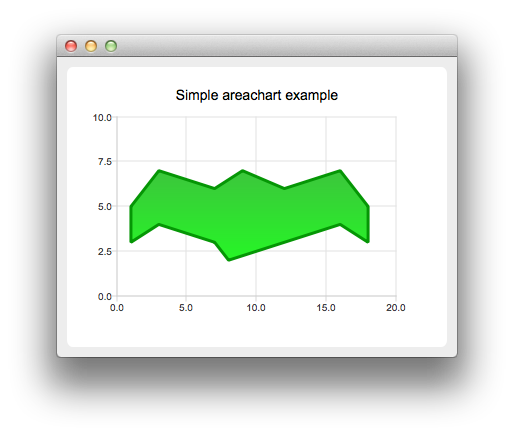
To create area charts, we need two QLineSeries instances. They are going to define the upper and lower boundary of the area.
auto series0 = new QLineSeries;
auto series1 = new QLineSeries;
We add data to both series and use the stream operator.
*series0 << QPointF(1, 5) << QPointF(3, 7) << QPointF(7, 6) << QPointF(9, 7) << QPointF(12, 6)
         << QPointF(16, 7) << QPointF(18, 5);
*series1 << QPointF(1, 3) << QPointF(3, 4) << QPointF(7, 3) << QPointF(8, 2) << QPointF(12, 3)
         << QPointF(16, 4) << QPointF(18, 3);
Now we create a QAreaSeries instance using two line series objects. We set the custom gradient fill and width of the outline.
auto series = new QAreaSeries(series0, series1);
series->setName("Batman");
QPen pen(0x059605);
pen.setWidth(3);
series->setPen(pen);

QLinearGradient gradient(QPointF(0, 0), QPointF(0, 1));
gradient.setColorAt(0.0, 0x3cc63c);
gradient.setColorAt(1.0, 0x26f626);
gradient.setCoordinateMode(QGradient::ObjectBoundingMode);
series->setBrush(gradient);
Last we create the QChartView instance, set the title, set anti-aliasing, and add the area series. We also create the default axes and specify the ranges on them.
auto chart = new QChart;
chart->addSeries(series);
chart->setTitle("Simple Area Chart");
chart->createDefaultAxes();
chart->axes(Qt::Horizontal).first()->setRange(0, 20);
chart->axes(Qt::Vertical).first()->setRange(0, 10);
The chart is ready to be shown.
createDefaultChartView(chart);